Input from a Mobile Device
Overview
Even without a PC, you can input your performance data from your mobile device.
Even when it's difficult to go out or take your PC with you, you can accumulate accurate data using the same operations as when entering data from a PC.
Notes
- This function is limited to users with an annual license agreement.
Please contact your company's TimeTracker administrator regarding the availability of this function. - Depending on the server PC's firewall settings, it may not be possible to connect from a mobile device.
If you cannot connect, please check the network settings of the server PC.
Operating Environment
We have confirmed that it works in the following environments:
| Device | OS | Browser |
|---|---|---|
| Android | 15 | Google Chrome |
| iPhone | iOS 26.2 | Google Chrome |
| iPad | iPadOS 26.2 | Google Chrome |
How to Access
-
Access the following URL.
[TimeTracker URL]/mobileExample: https://xx.xx.xx.xx/timetrackernx/mobile[TimeTracker URL] is the login URL with "login" removed.
-
Enter your TimeTracker account and password on the login screen.
- The account and password are the same as when logging in from a PC.
- SSO is not supported. Please enable local authentication.
What you can do on a mobile device
You can enter/change/delete actual work hours on the timesheet screen.
Changes made here are synchronized with the server and reflected on the screen accessed from a PC.
Entering Actual Work Hours
Tap the timesheet screen to enter actual work hours.
An editing screen will appear; please enter the necessary information.

- Items display information entered in the past.
- Displays the 5 most recent items.
- If there are no matching items, please select from the target project.
Changing Actual Man-Hours
You can enter actual man-hours using one of the following methods:
- Tap the target man-hour and change the time.
- Long-press the target man-hour to change the time.
- You can also move it.
- You can change the time by tapping the area highlighted in red in the image below.

Changing Actual Man-Hours
Tap the target man-hour and click the "Delete" button in the upper right corner.

Mobile Screen Settings
The following settings can be changed:
-
Granularity for entering actual work hours
-
Display language
-
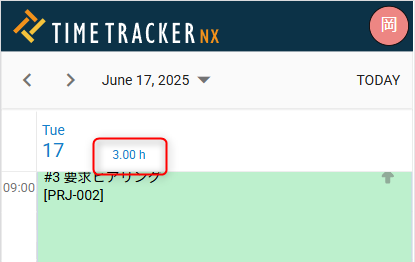
Whether or not to display daily work hours (red box in the image below)
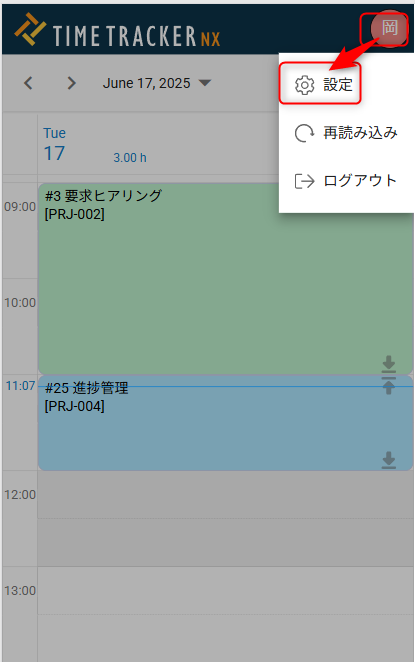
Please open the settings screen using the following steps:
Logout
Please log out using the following steps:
