Outputting Actual Man-Hours
Overview
Actual work hour data entered in TimeTracker RX can be exported to external files in Excel or CSV format.
- Work hour data can be arbitrarily aggregated in Excel or used for integration with external applications.
- By using Excel's pivot analysis function, it is also possible to analyze the exported actual work hour data by specifying a period on an item-by-item basis.
Exporting Actual Man-Hours
Actual man-hours can be exported in CSV or Excel format.
Operating Procedure
-
Click the icon to the right of your login name displayed in the global navigation.

-
Select "Export Actuals".
-
Select the file format.

-
Select the unit for aggregation.
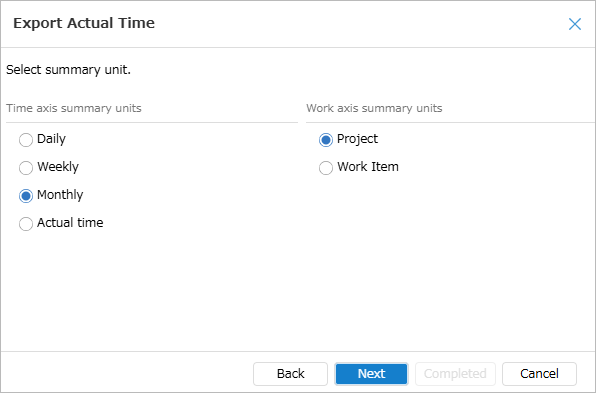
-
Specify the period for data output.

-
Select the output columns.
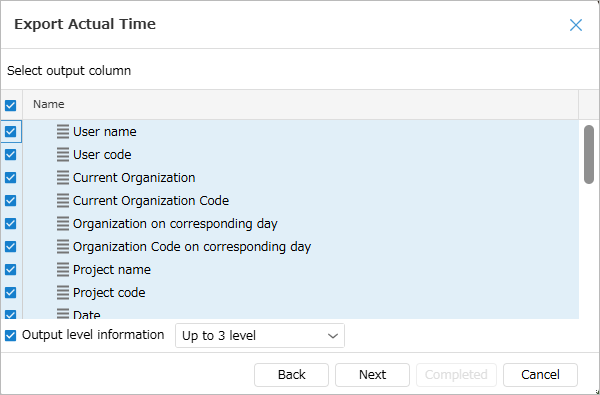
-
Select a filter. Filter to narrow down the users to be aggregated.
For projects or organizations, you can specify users collectively at that level.
-
Select the target users, projects, etc.
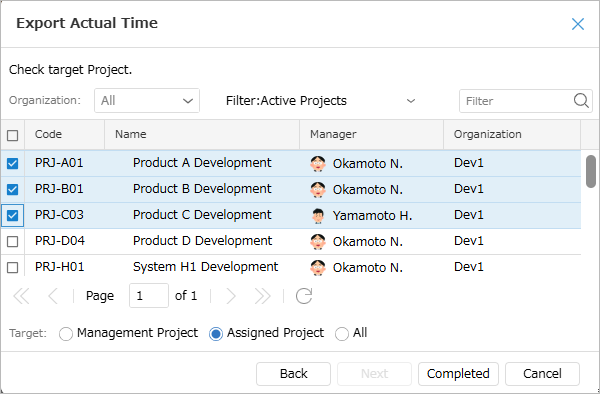
-
Click the "Finish" button.
-
Click the "Download" button in the "Export" dialog box.
Output Items for Performance Export
| Aggregation Unit | ||||
|---|---|---|---|---|
| Performance | Day, Week, Month | |||
| Output Item | Work Item | Project | Work Item | Project |
| User Name | ○ | ○ | ○ | ○ |
| User Code | ○ | ○ | ○ | ○ |
| Current Organization | ○ | ○ | ○ | ○ |
| Current Organization Code | ○ | ○ | ○ | ○ |
| Organization on the Relevant Day | ○ | ○ | ○ | ○ |
| Organization Code on the Relevant Day | ○ | ○ | ○ | ○ |
| Project Name | ○ | ○ | ○ | ○ |
| Project Code | ○ | ○ | ○ | ○ |
| Project Category 1-50 *1 | ○ | ○ | ○ | ○ |
| Date | ○ | ○ | ○ | ○ |
| Start Time | ○ | ○ | - | - |
| End Time | ○ | ○ | - | - |
| Actual Man-Hours | ○ | ○ | ○ | ○ |
| Actual Man-Hours (minutes) | ○ | ○ | ○ | ○ |
| Actual Cost *2 | ○ | ○ | ○ | ○ |
| Memo | ○ | ○ | - | - |
| Process Classification Group | ○ | ○ | ○ | - |
| Process Classification | ○ | ○ | ○ | - |
| Work Classification Group | ○ | ○ | ○ | - |
| Work Classification | ○ | ○ | ○ | - |
| Item Name | ○ | - | ○ | - |
| Item Type | ○ | - | ○ | - |
| Item Code | ○ | - | ○ | - |
| Item Number | ○ | - | ○ | - |
| Folder Name *3 | ○ | - | ○ | - |
| Folder Code *3 | ○ | - | ○ | - |
| Hierarchy Information *4 | ○ | - | ○ | - |
*1 Only project categories with "Allow Grouping" checked in the project category settings will be output.
*2 If the logged-in user does not have "Cost View" permission, 0 will be output.
*3 The folder at the closest hierarchy level to the target work item will be targeted.
*4 For details on hierarchy information, please refer to the following.
Output Column: Hierarchy Information
By selecting "Output Hierarchy Information" in the output column selection dialog, the parent item name can also be output.
By using this as input for Excel's pivot analysis function, etc., you can display the output results in your preferred view.
To output, check the checkbox and select the hierarchy to output.

For details, please refer to the following link: "Excel Pivot Analysis"
Notes
If there are no items in the specified hierarchy, the field will be blank.
For example, if you specify up to 15 levels and the 5th level is the last item, the following will be output:
- Levels 1-4: Parent item name
- Levels 5-15: Blank