Registering License Keys
Overview
By registering your license key on the Admin screen, you can use TimeTracker RX.
Similarly, when adding licenses or updating versions, you register the license key on the Admin screen.
The license key contains information such as the edition and number of licenses.
Registering License Keys
To update your license key, log in as a TimeTracker RX administrator user.
-
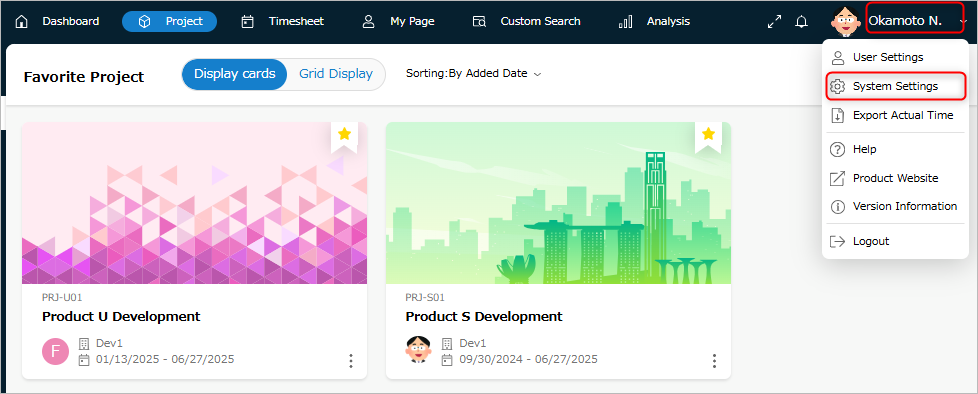
Click your login name in the TimeTracker RX global navigation and select "System Settings".
-
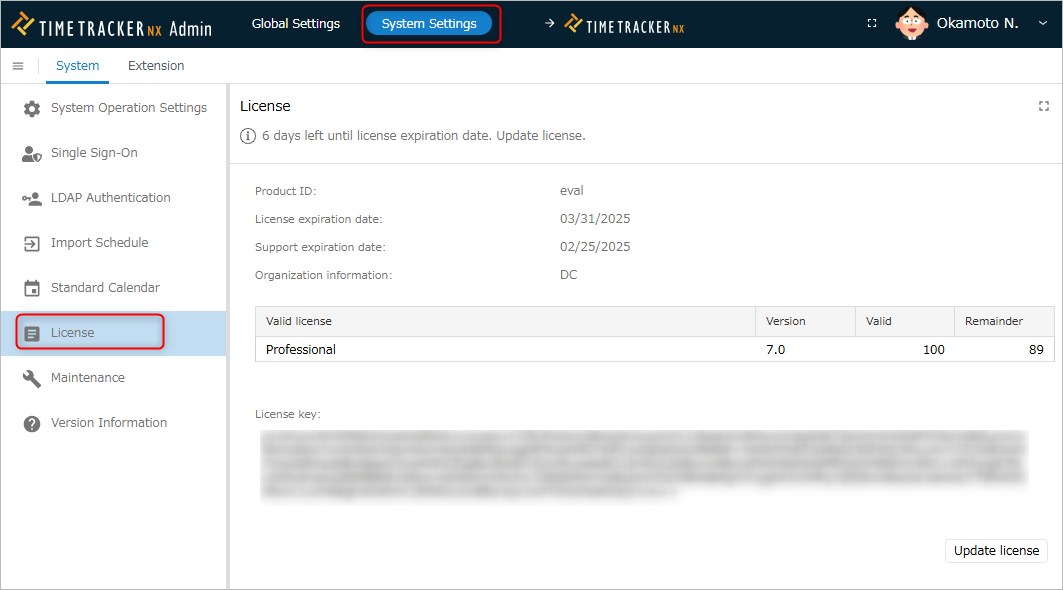
Click "System Operation" in the global navigation, then select "License".
-
Enter the license key information to be reflected in the "License Key" field.
-
License keys do not contain line breaks.
-
Line breaks may be included during the license key issuance process, so
Please delete line breaks before entering.
If the license information is not updated, please reload the screen. -
-
Click the "Register License" button.
Notes on License Operation
Relationship between the number of contracted licenses and the number of users
The items displayed in this scene indicate the following:
- Active: Number of available users (number of licenses contracted)
- Remaining: Number of users currently using the service

If you register more users than the number of active licenses, the following will occur:
- Users with system administrator privileges: Only the Admin screen will be displayed.
- Users without system administrator privileges: An error indicating that the number of licenses has been exceeded will appear, and you will not be able to log in.
In that case, please reduce the number of users using the following procedure and consider adding licenses if necessary.
"Delete User"
Maintenance Expiration Date Renewal
There are two expiration dates shown on this screen:
- License Expiration Date
- This is the expiration date until which you can use TimeTracker RX itself.
Example: For annual licenses, this is the same as the contract period.
- This is the expiration date until which you can use TimeTracker RX itself.
- Maintenance Expiration Date
- This is the expiration date until which you can use the desktop application included with TimeTracker.
- For information on the desktop application included with TimeTracker, please refer to "Desktop Application".
Please note that the included desktop application will not be available after the maintenance period has expired.
- You can use the TimeTracker RX unit itself as long as the license has not expired.
- You can renew the license by replacing the license key sent to you upon license renewal.