Connecting with Projects
Overview
You can link a pre-configured staffing plan with a TimeTracker RX project as follows:
- Create a new project based on the tasks in the staffing plan.
- Check the difference in resource allocation between the staffing plan and the project.
- Reflect the project's planned and actual effort in the staffing plan.
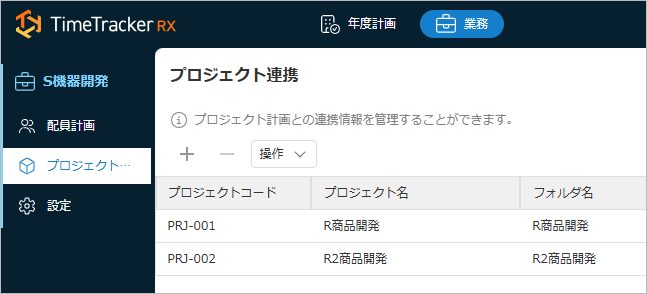
After creating a task and assigning a staffing plan, first link it to a project.
Linking to Projects
Tasks link to folders within a project.
A single task can link to multiple folders.
Depending on the project to be linked, follow these steps:
-
For existing projects
Click "Project Linking (Figure ① below)" from the menu on the left side of the screen, and select the folder to link/unlink from the task from ②.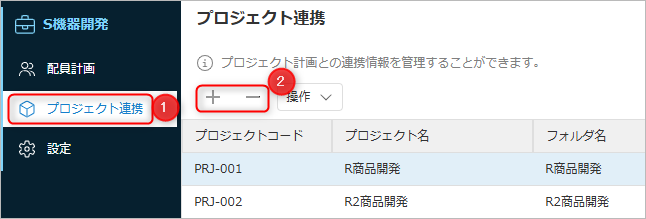
-
If the project does not exist
Clicking the "Action" button (Figure ① below) will open the project creation dialog.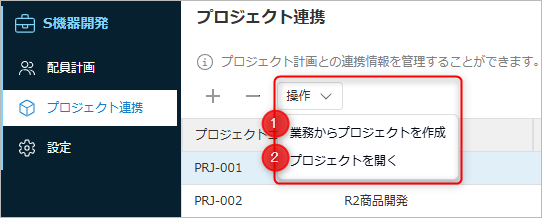
- The project name, administrator name, project period, and project members will reflect the settings configured in the task.
This operation should be performed by a member with permission to create a project.
- Select the target task and you can view the target project from "Open Project" (②).
- The project name, administrator name, project period, and project members will reflect the settings configured in the task.
Tasks linked to a project will be displayed as "Linked" on the task list screen.

- Clicking "Linked" will allow you to check the linked projects.
- Clicking the project name will display the project screen in a separate browser tab.
Check and Reflect Differences from the Project Plan
On the staffing plan screen for each task, you can compare the planned and actual man-hours of linked projects side-by-side.
On the staffing plan screen for individual tasks, click on Figure ① below to display the differences.
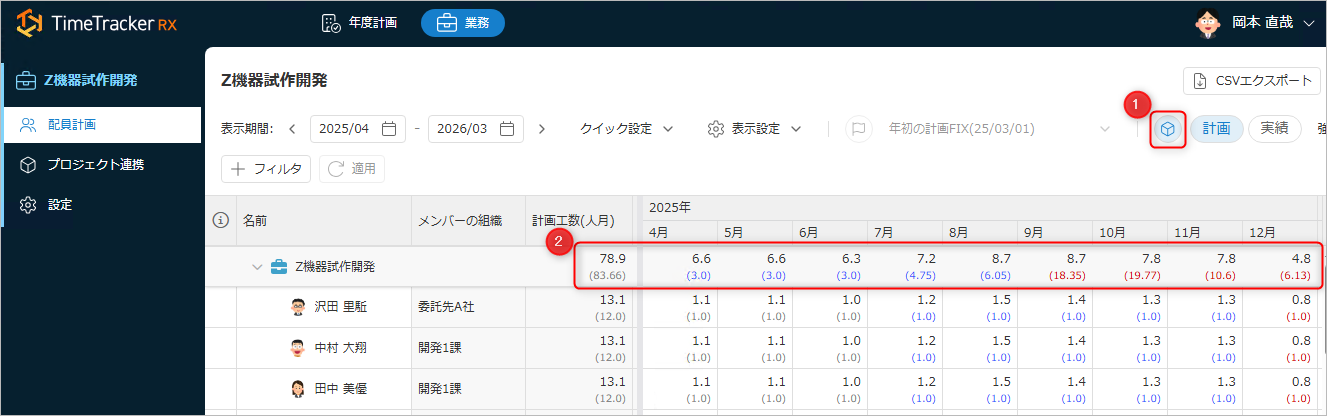
- ②: The lower row in the cell shows the project value.
- If the man-hour discrepancy is large, the project man-hours will be highlighted.
- Red: Project man-hours are high
- Blue: Project man-hours are low
- Project man-hours are the total man-hours assigned to resources of items under the linked folder.
- Project man-hours cannot be displayed when baseline display is enabled.
The display content is set as follows:
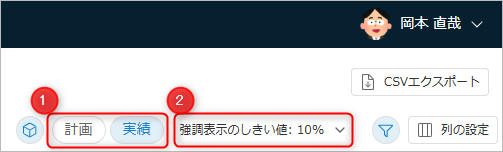
- ①: Switches between displaying planned and actual project effort.
- ②: Sets the conditions for highlighting project effort.
Reflecting Project Planned and Actual Effort
You can reflect the planned and actual effort from the project plan in the staffing plan.
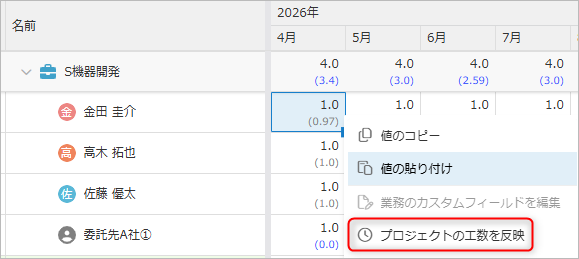
Select the cell you want to reflect, right-click, and click the red box in the image below.