Checking the plan across business functions
Overview
Staffing plans are assigned on a task basis.
When one member handles multiple tasks, resource allocation with other tasks may result in exceeding or falling short of one person-month.
Therefore, let's check the staffing plan status across tasks.
Checking Assignment Status
Staffing plans can be checked by task axis and member axis.
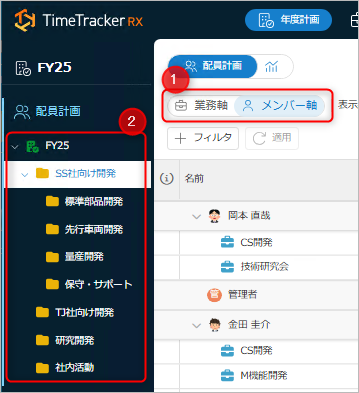
- Select the item to check and select the axis to check (①).
- The displayed area is the range of the annual plan or group selected in ②.
You can also filter the content displayed on the screen.
For detailed instructions, please refer to "Switching screen display".
-
Checking Business Axis
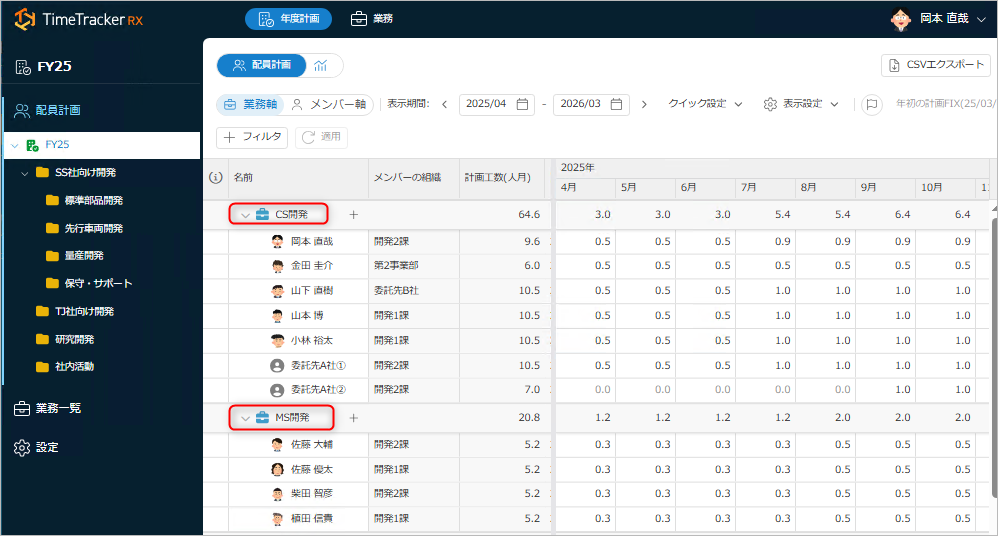
-
Checking Member Axis
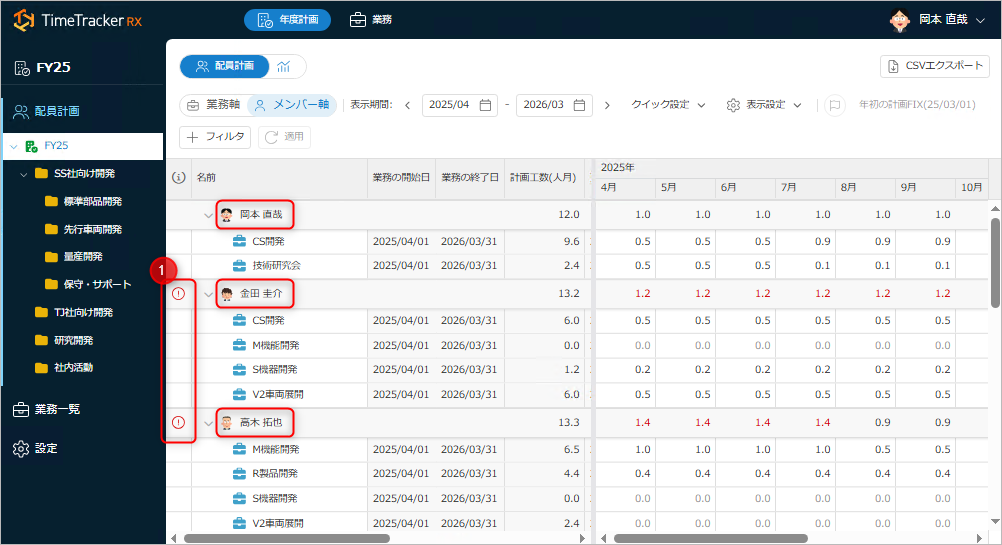 A warning will be displayed for members exceeding the standard value (1.0 person-month/month). (①)
You can also directly navigate to the target task.
Right-click on the target task and open the task screen.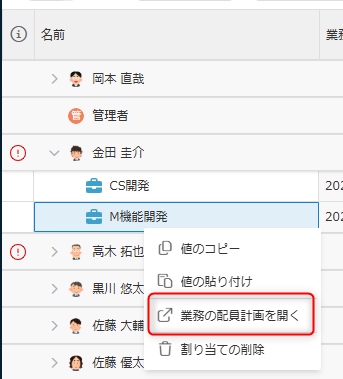
To change the assignment of personnel, please refer to "Setting the Planned Effort of Members".
Checking Staffing Plans by Group
This feature displays staffing plans by group, allowing you to review them from a broader perspective than just organizational units or specific tasks.
First, open the annual plan and select the summary (①).
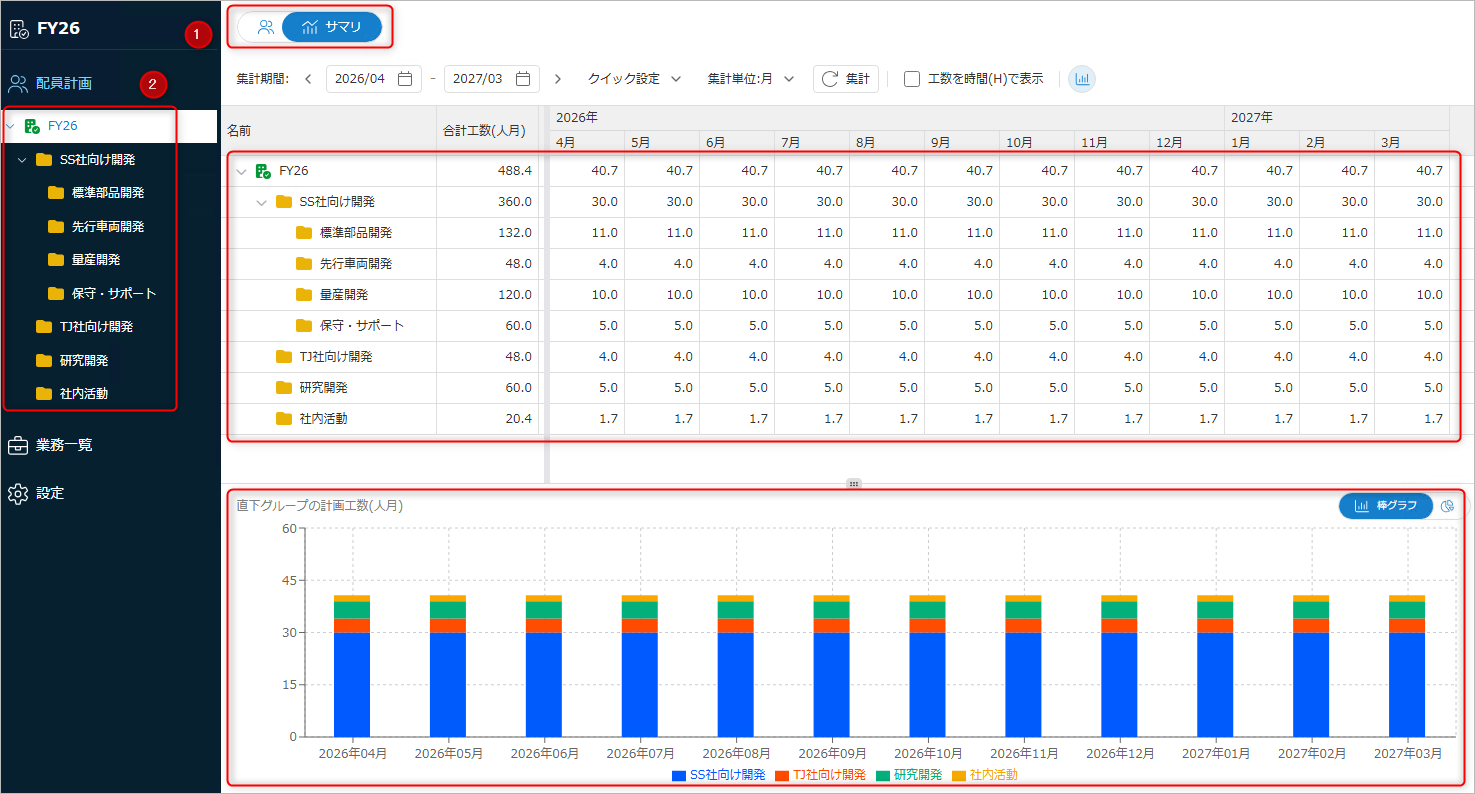
- Displays the range selected in ②.
- Displays the table content as a graph.
Screen Display Settings
You can switch the display using the following operations:

- ①: Switches the display period. You can easily set the display period to match the annual plan period, for example.
- ②: Switches the aggregation unit.
- ③: Updates the displayed content.
Please click after switching the display period or unit.
- ④: Toggles graph display on/off.
Exporting Data
You can export staffing plan data across different tasks to an external file.
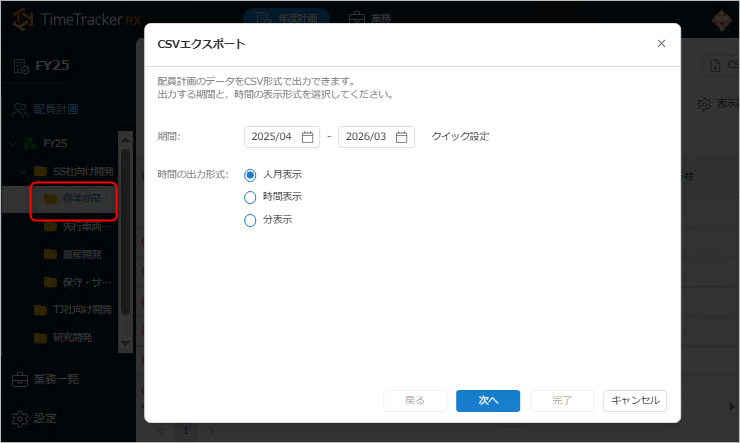
Click "CSV Export" and follow the dialog to set the output target.
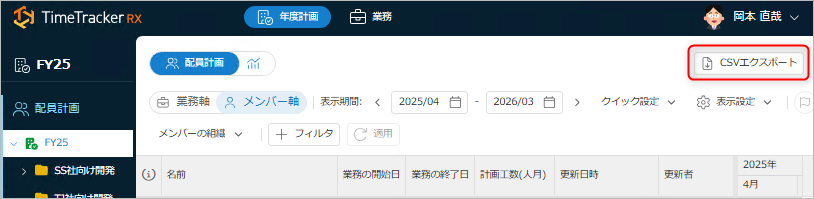
- None: Tasks under the selected group (red frame in the figure below)
- Task: Any task. Select on the next screen.