Setup screen and login screen not displayed
Overview
This document provides troubleshooting steps for the following issues that may occur after installing or upgrading TimeTracker RX.
- Error screen appears
- The screen does not display correctly
Troubleshooting
First, check whether the problem is occurring on the server machine or the client machine.
Log in to the server machine and directly enter "localhost/(site name)/login" into the browser's URL bar.
The presence or absence of TimeTracker RX indicates the following possible causes:
- If it does not display: 1. Check server machine settings
- If it does display: 2. Check server machine ⇔ client machine connection
1. Check server machine settings
If it cannot be displayed on the server machine either, TimeTracker RX may not be starting correctly.
Please check the following.
- Ensure the Internet Information Services (IIS) on the web server is running.
- Ensure no other web servers exist on the same server machine.
- Ensure the certificate used for HTTPS communication is correctly configured.
Detailed verification methods are provided below.
1. Ensure the Internet Information Services (IIS) on the web server is running.
TimeTracker RX runs on IIS, so it will not work if IIS is stopped.
Click the image below to start IIS.
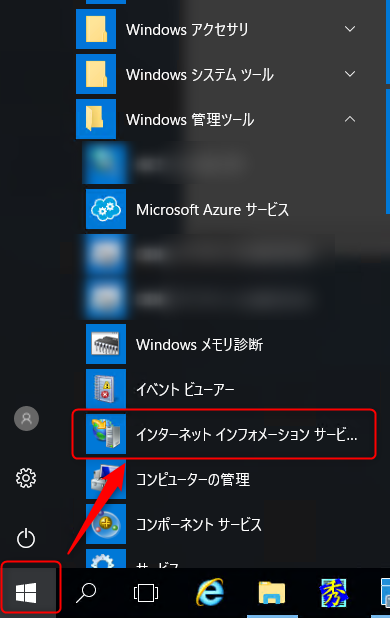
Then, check the following:
-
Server status In the IIS Manager, click the [Connections] tab and then click [Machine Name (Username)].
If "Start" is selectable, IIS is stopped.
Click "Start".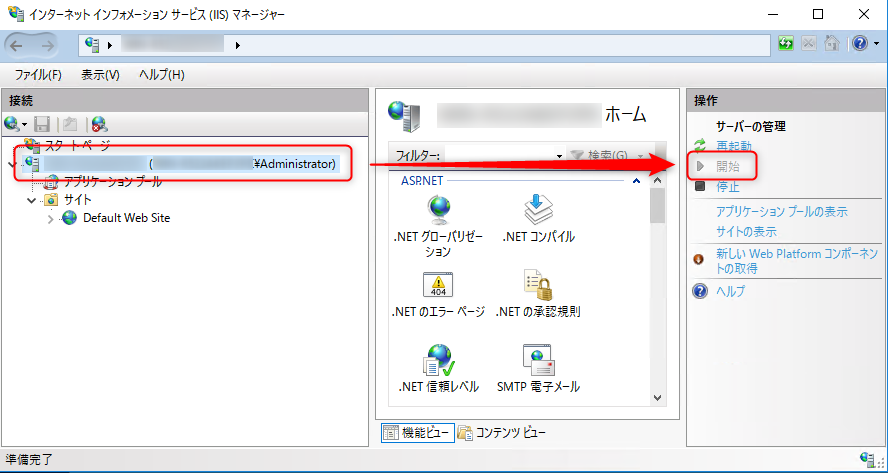
-
Application Pool Status
In the IIS Manager, click [Machine Name (Username)] - [Application Pools] on the [Connections] tab.
If the "Status" column for TimeTrackerRX is not "Started," IIS is stopped.
Click "Start."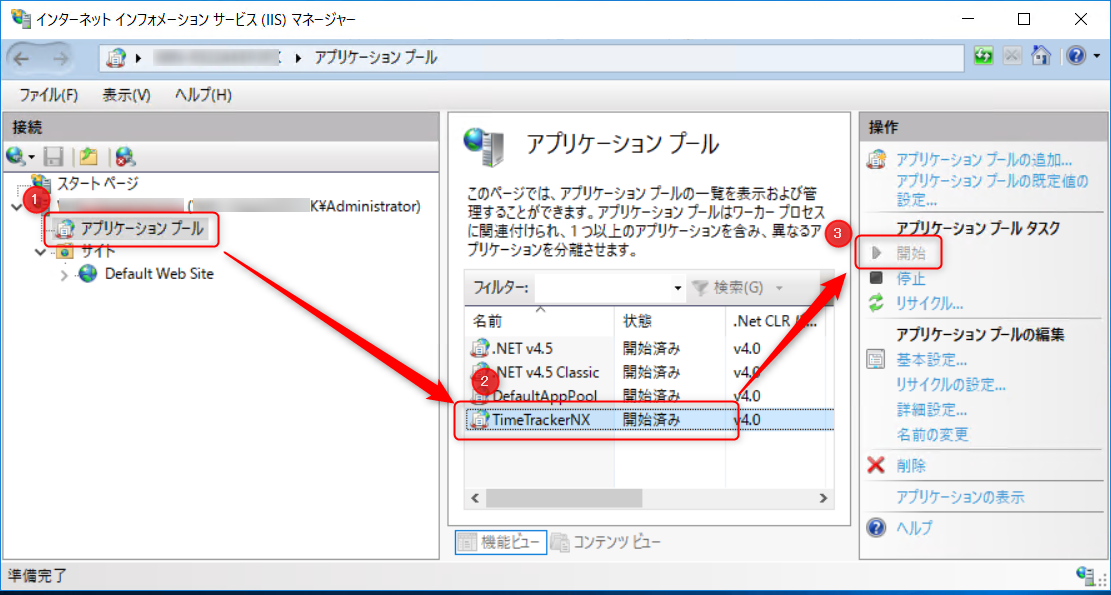
-
Site Status
In the IIS Manager, click [Machine Name (Username)] - [Sites] on the [Connections] tab.
The image below shows an example of TimeTracker RX installed on "Default Web Site."
If it is not "Started," IIS is stopped.
Click "Start."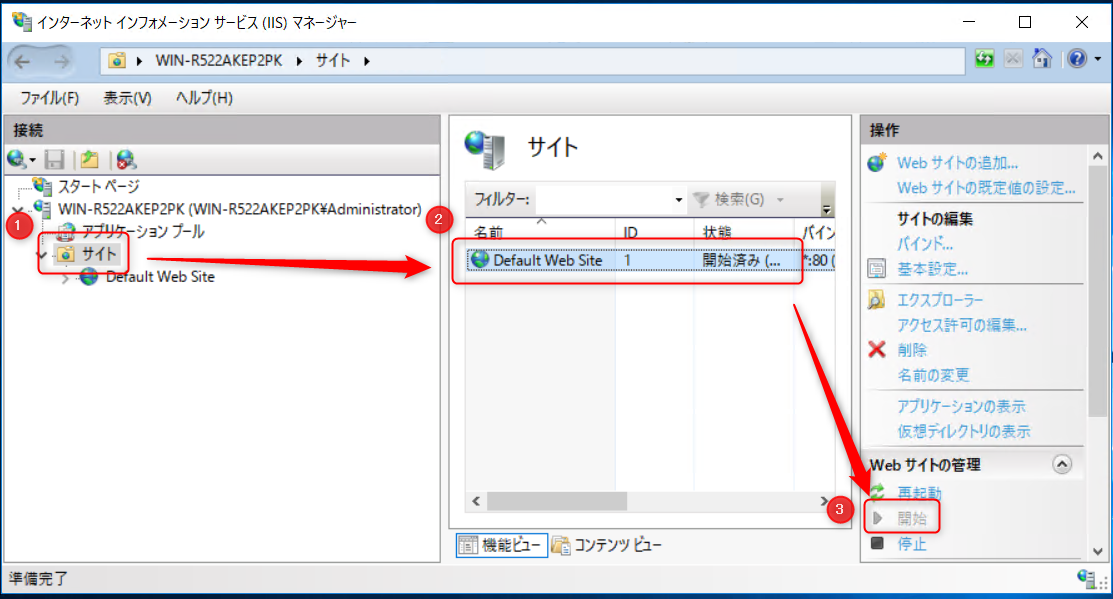
2. No other web servers on the same server machine
Please check with your server machine administrator to see if there are any other web servers running on the server machine besides IIS (e.g., Apache). If there are other web servers besides IIS, please move the web servers other than TimeTracker RX to another server machine.
3. The certificate used for HTTPS communication is correctly configured
When installing TimeTracker RX, if you selected "https" as the communication protocol, you need to configure a server certificate issued by a third-party organization on the server machine.
In this case, problems may occur in the following cases:
- The certificate is not configured correctly.
- The certificate has expired.
Please consult with your server administrator and ensure the server certificate is configured correctly.
2. Check the connection between the server machine and the client machine
In this case, there is a possibility that the network is not connected between the server machine and the client machine. Please check the following:
1. Can the server machine and client PC communicate?
Please check if communication is possible between the server machine and client PC using the PING command. To use the PING command, open a command prompt and enter and execute the following command:
ping <server machine name>
- Example: ping myserver.domain
- Replace<server machine name> with the name of the machine where the TimeTracker RX server is located.
You can check this on the following screen. (Output shows both successful and unsuccessful cases.)
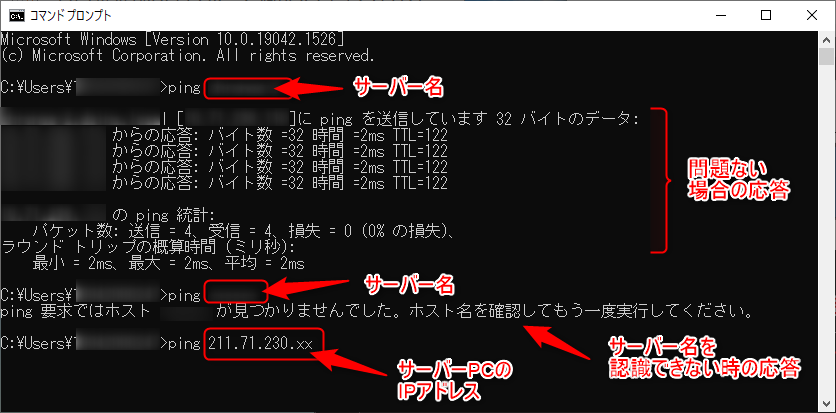
If "Host XX not found" is displayed, the server machine cannot be referenced.
Please consult your network administrator to resolve the name.
2. Check if communication is being blocked by a firewall, etc.
Please check if the Windows firewall or other network devices on the network (such as routers) are blocking HTTP communication between the client and server machines.